
After installing SQL Server in the server, you may experience the following error when connecting from a remote machine to the SQL Server:
SQLState: '01000'
SQL Server Error: 67
[Microsoft][ODBC SQL Server Driver][DBNETLIB]ConnectionOpen(Connect()).
Connection Failed:
SQLState: '08001'
SQL Server Error: 17
[Microsoft][ODBC SQL Server Driver][DBNETLIB]SQL Server does not exist or access is denied.
This means that SQL Server is not accessible from the network. This may due to the any of the following:
- Incorrect user and password
- Allow remote connections option is disabled in SQL Server
- TCP/IP or Named Pipes options are disabled in the server
- TCP/IP or Named Pipes using dynamic instead of static port 1433
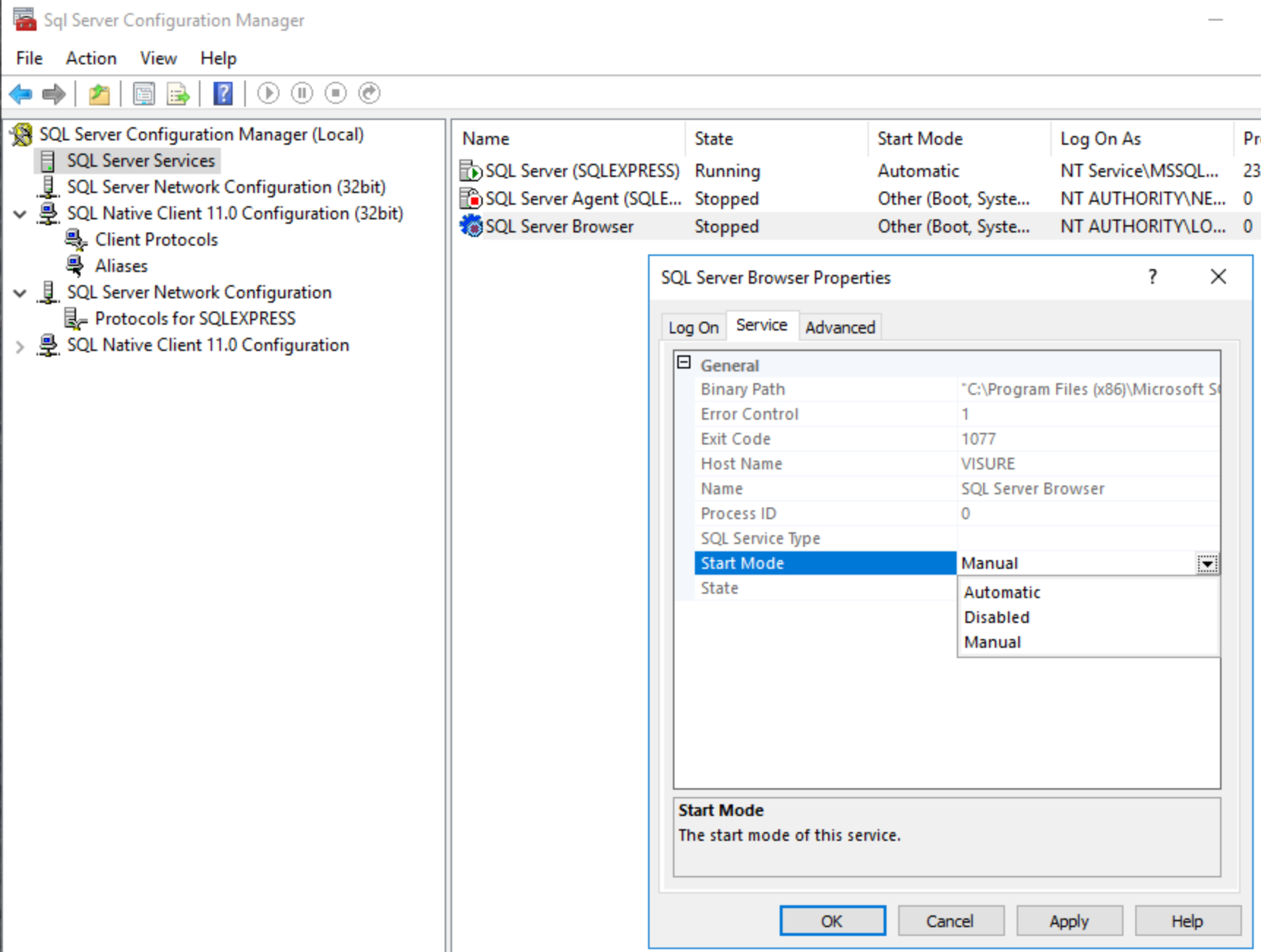
- SQL Server Browser is disabled in the server
After implementing any of these solutions, don't forget to restart the server.
Enabling remote connections
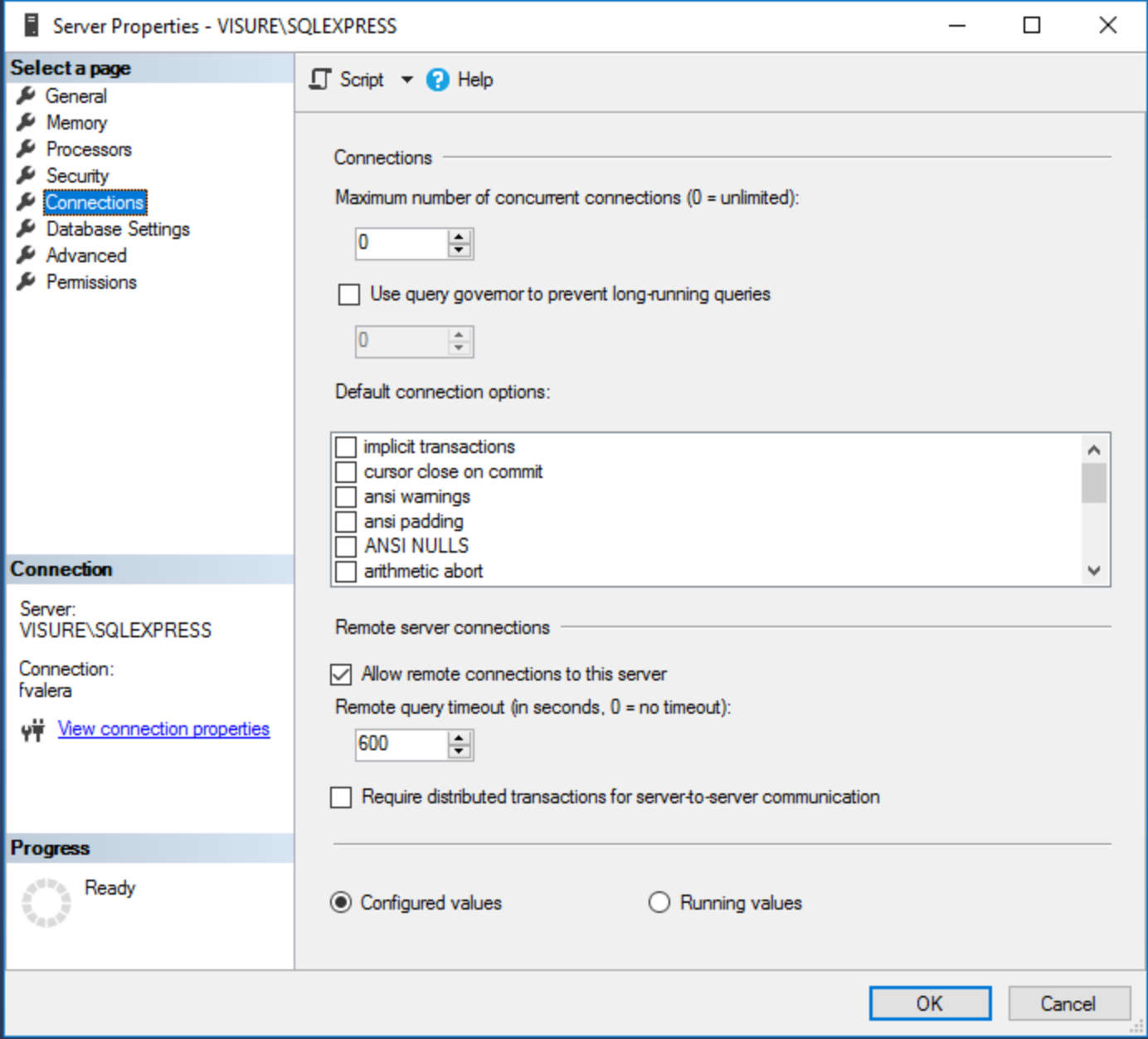
Execute MS SQL Console Management and do a right click on top of the repository and select Properties in the context menu. Go to Connections and enable the "Allow remote connections to this server" option
Enabling TCP/IP and Named Pipes
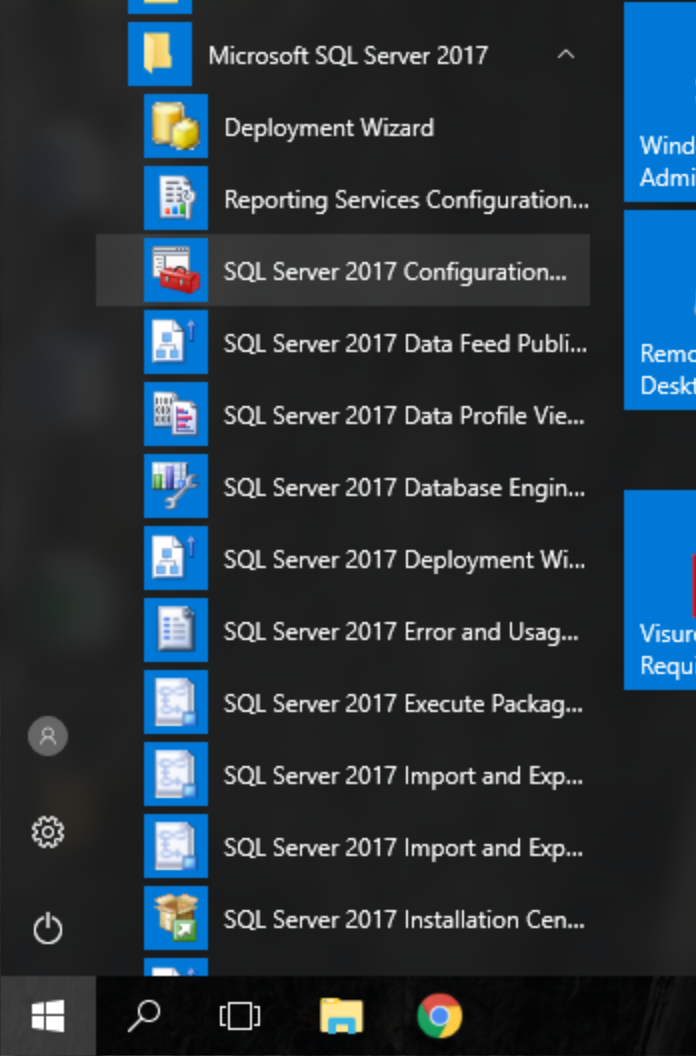
Open the SQL Server Configuration Manager.
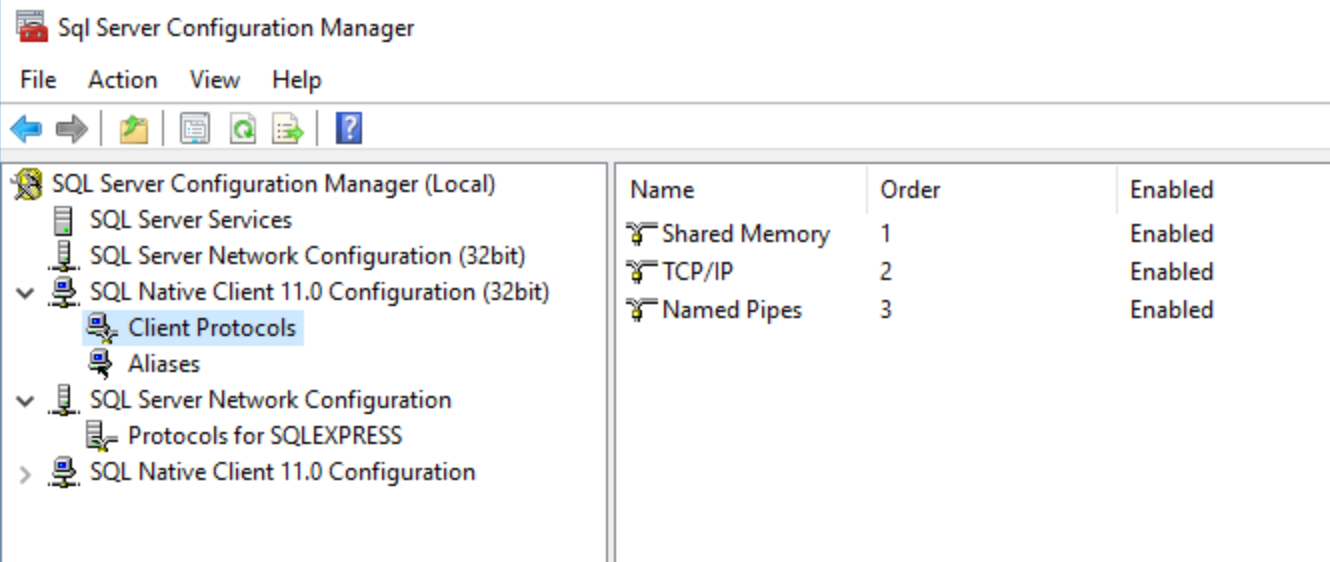
Access the SQL Native Client > Client Protocols and make sure that TCP/IP and Named Pipes are enabled.
Changing TCP/IP or Named Pipes dynamic to static port 1433
Open the SQL Server Configuration Manager.
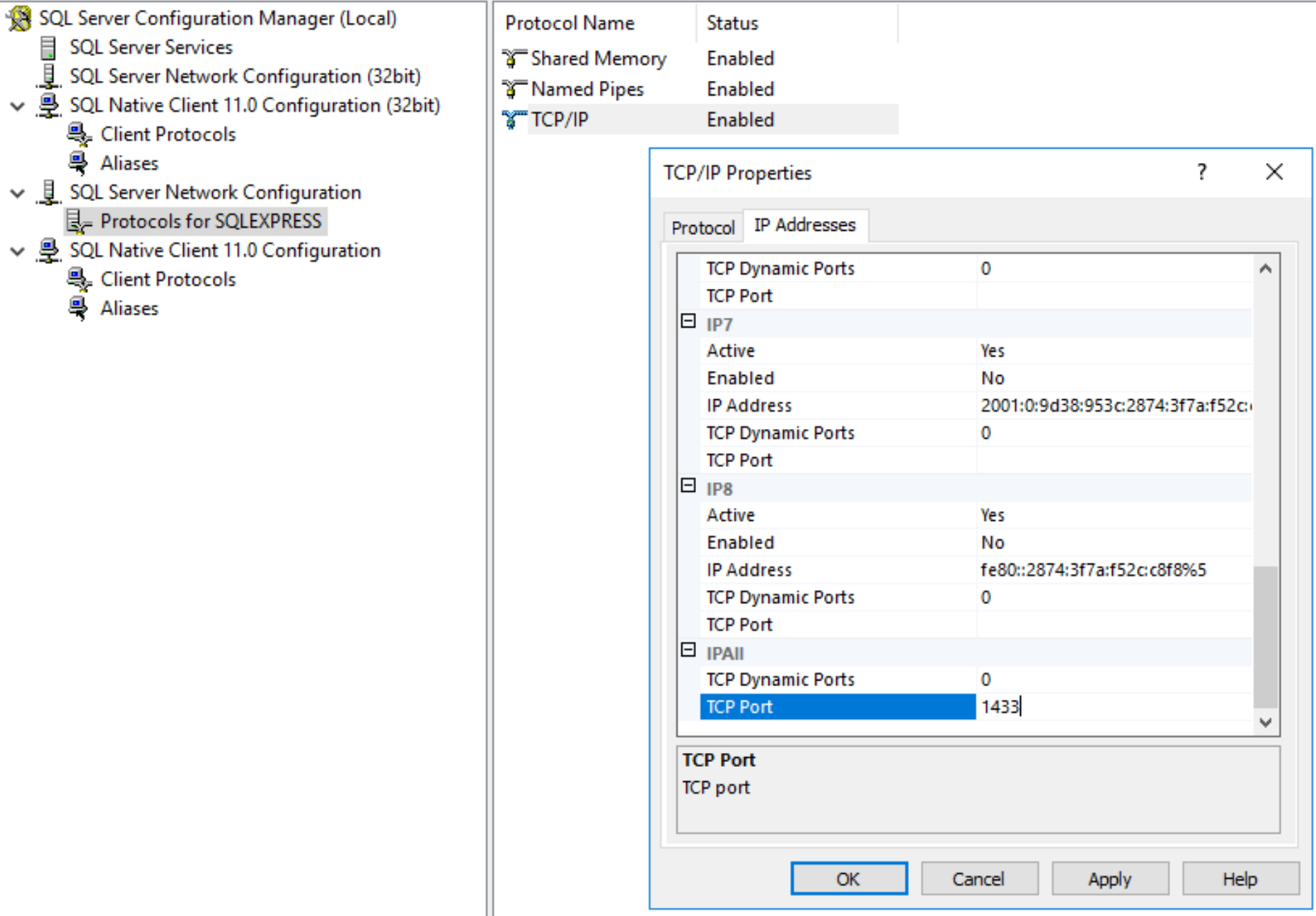
Access the SQL Native Client > SQL Server Network Configuration > Protocols for SQLEXPRESS
Access the TCP/IP Properties, IP Addresses tab.
In the IPAll option, make sure that the TCP Port is established to 1433
Starting SQL Server Browser
Inside the SQL Server Configuration Manager, go to SQL Server Services.
Enable the SQL Server Browser. You may need to access the Service tab, and select Automatic in the Start Mode (it may be in Disabled by default). Then Start the service.
Comments
0 comments
Please sign in to leave a comment.